GIF making guide
How to Combine Multiple GIFs Into One (Back to Back)
Join two or more GIFs into a single sequence without stretched frames or jerky timing. How to match sizes, shapes and frame rates before you merge.
Combining GIFs means playing them one after another as a single file. The merge itself is easy; what makes it look professional is preparation. Before joining, give every clip the same shape (or accept bars around the odd ones), trim each one tight, and choose one frame rate for the result. Do that and the joins feel like cuts in a film rather than a pile of clips glued together.
This guide covers why people combine GIFs, how the merge works under the hood, the preparation that matters and how to do it on Android.
Why combine GIFs?
- Step-by-step tutorials. Record each step separately, then join them into one walkthrough.
- Before and after. A clip of the problem followed by a clip of the fix.
- Reaction chains. A setup clip followed by the reaction.
- Highlights. Two or three best moments from different videos in one loop.
- Text that appears partway. A plain clip followed by the same clip with a caption, so the punchline lands on the second pass.
If what you actually want is several GIFs side by side in one frame (a grid or collage), that is a different technique. This guide covers back-to-back sequences.
What happens when GIFs are merged
A combined GIF is one sequence of frames with one canvas size. To get there, an editor has to make every source clip compatible:
- One canvas. A GIF has a single width and height. Clips of a different shape are scaled to fit inside that canvas, and the leftover space becomes bars (letterboxing). Stretching them instead would distort them.
- Shared colors. Every GIF frame is limited to 256 colors. The format allows a separate palette per frame, but many encoders, including the one GifLab uses, build one palette for the whole animation. Clips with very different colors (a sunset, then a green field) then compete for the same 256 slots, and both can lose some subtlety.
- One frame rate. GIFs can have any timing per frame, but merged clips are usually resampled to a common rate. A clip with more frames per second than that rate loses some; a clip with fewer gets some frames shown twice.
Understanding these three steps tells you exactly what to prepare. It also explains why clips with similar colors and lighting combine best.
Prepare your clips first
Match the shape
This is the single biggest factor. A square clip followed by a tall clip followed by a wide clip will show bars on at least two of them. Decide on one shape — square is the safest for most uses — and crop every clip to it before merging.
Trim each clip tight
Dead time at the start and end of each clip adds up: three clips with half a second of nothing on each end add three seconds of waiting. Trim each source to just the moment you want.
Mind the frame rates
Check roughly how smooth each clip is. If one is a choppy 8 fps reaction GIF and another is smooth 25 fps footage, the combined result runs at a single rate. Somewhere around 12–15 fps is a good compromise for mixed sources; going much higher just duplicates frames from the choppier clips and adds size without smoothness.
Watch the total length
A combined GIF is roughly as heavy as all its parts together. Four 3-second clips make a 12-second GIF, which is long for the format. If size matters, our guide to reducing GIF file size has the levers that help most.
Step by step: combining GIFs in GifLab
GifLab's Combine GIFs workflow chains two to four GIFs back to back. You will find it under More tools on the home screen.
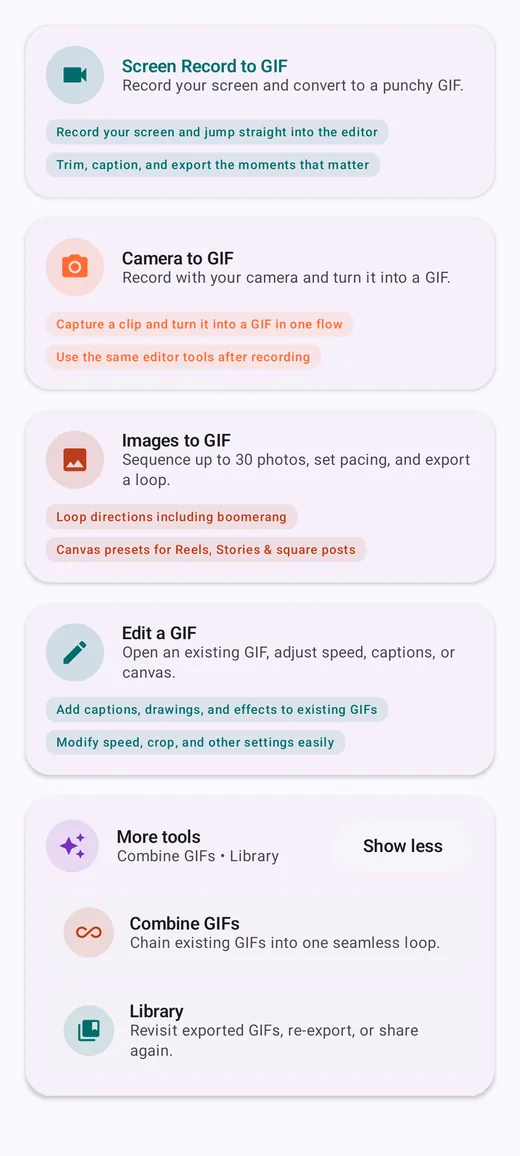
- Prepare each GIF with Edit a GIF if needed: trim it, crop it to your chosen shape and export it. If your clips are videos, make each into a GIF first with Select Video.
- Open Combine GIFs and tap Select GIFs. Choose two to four GIF files in the photo picker. You can add more later with Add more, up to four.
- Set the order. The clips are listed as Clip 1, Clip 2 and so on, and that order is the playback sequence. Use the up and down arrows to rearrange, or remove one.
- Choose the frame rate. In manual mode, the frame-rate slider runs from 5 to 24 fps; the app suggests 8–15 fps for most sequences.
- Choose the size. Set the Target long edge slider in manual mode, or choose a Target file size under Export settings to let GifLab fit the result to a limit.
- Tap Export GIF. The combined GIF is saved to Pictures/GifLab, and the project appears in the Library under the Combine GIFs filter, where you can reopen it later.
The first clip sets the canvas. GifLab uses the shape of Clip 1 for the whole sequence and fits the other clips inside it, adding bars where shapes differ. Put a clip with your preferred shape first. The size is also capped at the first clip's dimensions, because the merge never scales it up beyond its original size.
Polish the combined GIF
Once the clips are joined, you can treat the result like any other GIF. Open it with Edit a GIF to add a caption that spans the whole sequence, adjust the overall speed, or apply a filter so clips from different sources look like they belong together. A single black-and-white or warm filter over mixed footage is a surprisingly effective way to hide differences in color and lighting.
Think about order, too. Many apps and pages show the first frame as a still preview before the GIF plays, so put the clip that explains the sequence (or the most striking one) first. For tutorials, the natural order is the order of the steps; for highlights, end on the strongest moment so it is fresh in mind when the loop restarts.
For transitions, keep it simple. GIF has no built-in crossfade, and hard cuts usually look cleanest. If you want a beat between clips, end each source on a frame that holds for a moment; in GifLab's Frame Editor you can duplicate a frame a few times to create a short pause.
Common problems
Black bars around some clips
The clips have different shapes. Crop them to the same aspect ratio before combining, or put the clip with the shape you want first.
One clip plays too fast or too slow
Combining resamples clips to one frame rate, but each clip keeps its own real-world duration. If a clip was itself sped up or slowed down, fix its speed with Edit a GIF before merging.
The result is too large
Drop the frame rate, reduce the target long edge, trim the sources, or use fewer clips. A target file size does the balancing automatically.
Frequently asked questions
How many GIFs can I combine at once?
In GifLab, two to four per export. To join more, combine the first four, then combine that result with the next clips.
Can I combine videos instead of GIFs?
Combine GIFs works with GIF files. Turn each video into a GIF first, then combine them; our guide to turning a video into a GIF walks through that step.
Will combining reduce quality?
Every frame is re-encoded into a shared 256-color palette, and frames may be resampled to the new rate, so there can be a small loss. Start from the best-quality copies you have and combine once rather than repeatedly.