GIF making guide
Boomerang, Reverse or Forward? How to Make a GIF Loop Seamlessly
Forward, reverse and boomerang loops explained: which clips suit each mode, how to trim for a seamless loop, and what a boomerang does to file size.
A GIF loop can run three ways. Forward plays the clip and jumps back to the start. Reverse plays it backwards. Boomerang plays it forwards and then backwards, so it never jumps at all. If your clip's last frame looks nothing like its first, a boomerang is the quickest route to a seamless loop. If you want a forward loop to feel endless, you have to trim it so the end flows back into the start.
This guide explains how GIF looping works, which mode suits which clip, and how to trim for a loop nobody can spot.
How GIF looping works
A GIF is a sequence of frames, each with its own display time. Whether it repeats is controlled by a small "application extension" block in the file (often called the NETSCAPE2.0 block) that stores a loop count. A count of zero means "loop forever", which is what nearly every GIF you see uses. Without that block, most viewers play the animation once and stop on the last frame.
There is no crossfade or blending at the loop point: the viewer simply shows frame 1 again after the last frame. That is why the choice of start and end frames matters so much.
Which loop mode suits your clip?
| Mode | How it plays | Best for | Watch out for |
|---|---|---|---|
| Forward | Start → end, then jump to start | Repeating motion: walking cycles, spinning objects, waves, a ball bouncing in place | A visible jump if the end and start do not match |
| Reverse | End → start, then jump to end | Surreal effects: water leaping out of a glass, a dive out of a pool, a building un-collapsing | The same jump problem as forward; people and text look odd backwards |
| Boomerang | Start → end → start, repeat | Short gestures: a toast, a hair flip, a jump, a door swinging | Twice as many frames, so roughly twice the file size |
Making a seamless forward loop
A forward loop looks endless when the last frame leads naturally into the first. That needs two things to match: position (the subject is in the same place) and motion (it is moving in the same direction at a similar speed).
- Look for a repeating cycle. Anything periodic works: a pendulum, a bike wheel, a person walking on a treadmill, waves on a shore, a cat's tail flicking.
- Pick a distinctive moment as the anchor, such as the pendulum at the far left of its swing.
- Trim the start to that moment, and the end to just before the same moment one cycle later. Ending exactly on the matching frame shows it twice in a row, which reads as a tiny stall.
- Keep the camera still. If the background drifts, the loop jumps even when the subject matches perfectly.
- Check it several times. Watch the loop point specifically. If you see a hitch, move the end point by a frame or two.
Tip: lowering the frame rate can hide a small mismatch. At 10–12 fps each frame lasts longer, and the gap between the last and first frame looks like any other step in the motion. See our frame rate and speed guide for more on this trade-off.
Getting the most out of boomerang
Boomerang is forgiving because there is no jump: the motion just changes direction. It still rewards a little care:
- Keep the source short. One to two seconds of motion is usually perfect. The boomerang doubles it, and longer clips feel like they are rewinding rather than bouncing.
- Choose motion with a clear direction. A jump, a toss, a head turn or a splash looks great reversed; aimless movement just looks like jitter.
- Speed it up. Many boomerangs feel best at 1.5x–2x, which gives them a snappy, playful rhythm.
- Mind the turnarounds. When a clip is joined to its reverse, the frames at the turning points appear twice in a row, so the motion briefly holds at each end. With a short, fast clip this reads as a natural bounce.
- Plan for size. Twice the frames means roughly twice the data. If you are near a limit, trim the source to about half the length you would use for a forward loop, or lower the frame rate. Our guide to reducing GIF file size covers the other options.
How long should a loop be?
Viewers usually watch a looping GIF two or three times before scrolling on, so the whole loop should make its point in a few seconds. Good starting points:
- Forward loops: one full motion cycle, typically 1–4 seconds. Two identical cycles add size without adding anything new.
- Boomerangs: 1–2 seconds of source, which becomes 2–4 seconds once it plays back.
- Reverse: long enough to show the "impossible" moment clearly, plus a short beat before it so viewers know what to watch.
The frame counts add up quickly. At 15 fps, a 2-second boomerang source has 30 frames and plays as 60, the same as a 4-second forward loop. When a loop feels too slow, trimming usually beats speeding it up, because trimming also makes the file smaller.
Ideas that work brilliantly in reverse
Reverse is the most playful mode, because it shows things physics does not allow:
- Pouring a drink, so liquid rises back into the bottle.
- Jumping into a pool, so the diver flies out of a calm surface.
- Blowing out a candle, so smoke flows back and the flame relights.
- Tearing paper, knocking over blocks or popping a balloon.
- Throwing something into the air and letting it fall into your hand, so it seems to leap up.
Avoid reversing clips that contain readable text or a talking face. Mirrored-in-time lip movements and scrolling text tend to look like a mistake rather than an effect.
Choosing a loop mode in GifLab
In GifLab's editor, the Loop mode section offers Forward, Reverse and Boomerang. The live preview always plays forward; reverse and boomerang are applied when you tap Export GIF, so check the exported file in your gallery. GifLab's exports loop forever.
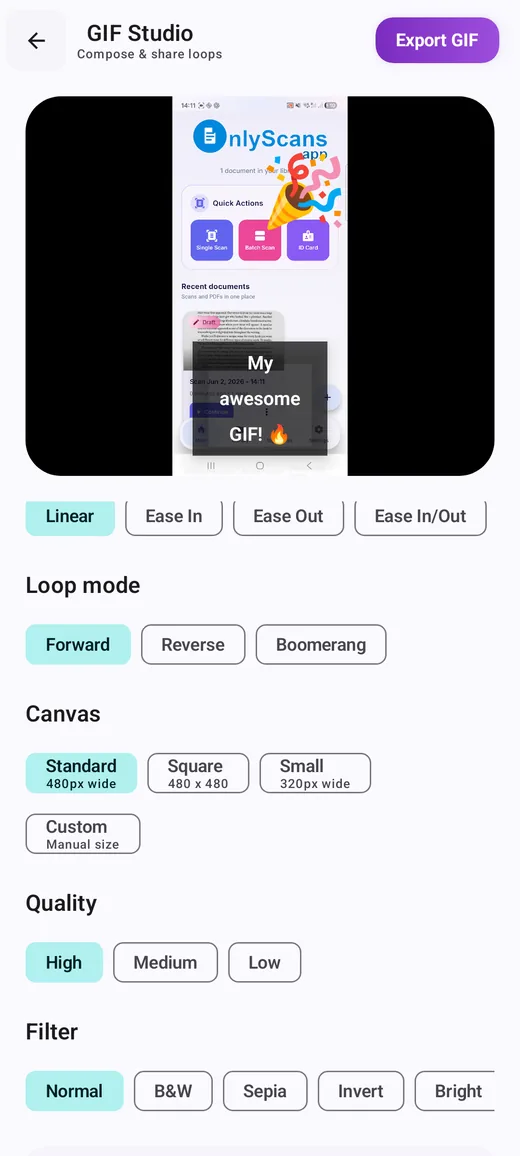
The loop modes work on anything you can open in the editor: videos, screen recordings, camera clips and existing GIFs. For a GIF built from photos, export it from Images to GIF first, then open the result with Edit a GIF and choose Boomerang. A burst of a jump turned into a boomerang is one of the easiest crowd-pleasers there is; our guide to making a GIF from photos covers shooting the burst.
Frequently asked questions
Why does my GIF have a jump at the end?
The last and first frames do not match in position or motion. Trim to a matching point in the motion cycle, keep the camera still, or switch to Boomerang, which never jumps.
Can a GIF play only once?
Yes. The format can store a specific number of repeats, or none at all. In practice, nearly all shared GIFs loop forever, and some apps loop GIFs regardless of what the file says.
Is a boomerang the same as a reversed GIF?
No. A reversed GIF only plays backwards. A boomerang plays forwards and then backwards, so it contains both directions and is about twice as long.
Can I reverse a GIF I already have?
Yes. Open it with Edit a GIF in GifLab, choose Reverse or Boomerang under Loop mode, and export it as a new GIF. The original file is left untouched.