GIF making guide
How to Turn a Video Into a GIF on Android, Step by Step
Pick the right moment, trim it tight and choose sensible size and frame-rate settings. A practical guide to turning any phone video into a clean GIF on Android.
The short version: pick a 2–6 second moment, trim to exactly that moment, export at a modest width (around 320–480 pixels) and 10–15 frames per second, then add text only if it helps. Most bad GIFs fail on one of those four points — they run too long, they are far bigger than the screen they will be watched on, or they try to reproduce smooth 60 fps video in a format that was never built for it.
Below we walk through choosing the clip, the exact steps on an Android phone, the settings we recommend for common destinations and the problems you are most likely to hit.
Choose the right moment before you open any app
A GIF is a silent loop that people usually watch two or three times in a row. That changes what makes a good clip:
- One action, start to finish. A head turn, a goal, a dog catching a ball, a button press and its result. If you need to explain what is happening, the clip is probably too long.
- Two to six seconds. Shorter clips loop more satisfyingly and stay small. Every extra second adds frames, and frames are what make GIFs heavy.
- No dependence on sound. GIF has no audio track at all. If the joke lives in the dialogue, you will need a caption — see our guide to adding text and meme captions to a GIF.
- Steady footage if possible. Camera shake changes almost every pixel in every frame, which both looks messy and makes the file much larger. A clip shot from a steady hand or a surface compresses far better.
- A natural loop point. Clips where the end looks similar to the start (a swing, a wave, a spin) loop invisibly. If yours does not, a boomerang loop is often the fix.
Scrub through the video in your gallery first and note the rough start and end times. It makes the trimming step much quicker.
Step by step: video to GIF in GifLab
These steps use GifLab, our free GIF maker for Android. The same order of operations — trim, size, timing, extras, export — applies in any decent editor.
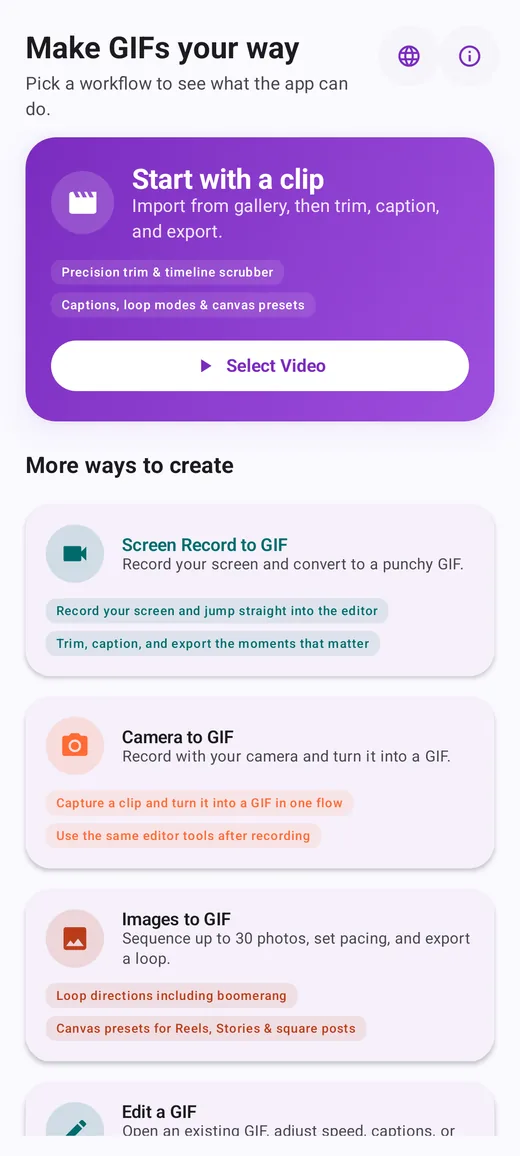
- Tap Select Video on the Start with a clip card. Android's photo picker opens and shows only videos; pick one. GifLab only gets access to the file you choose.
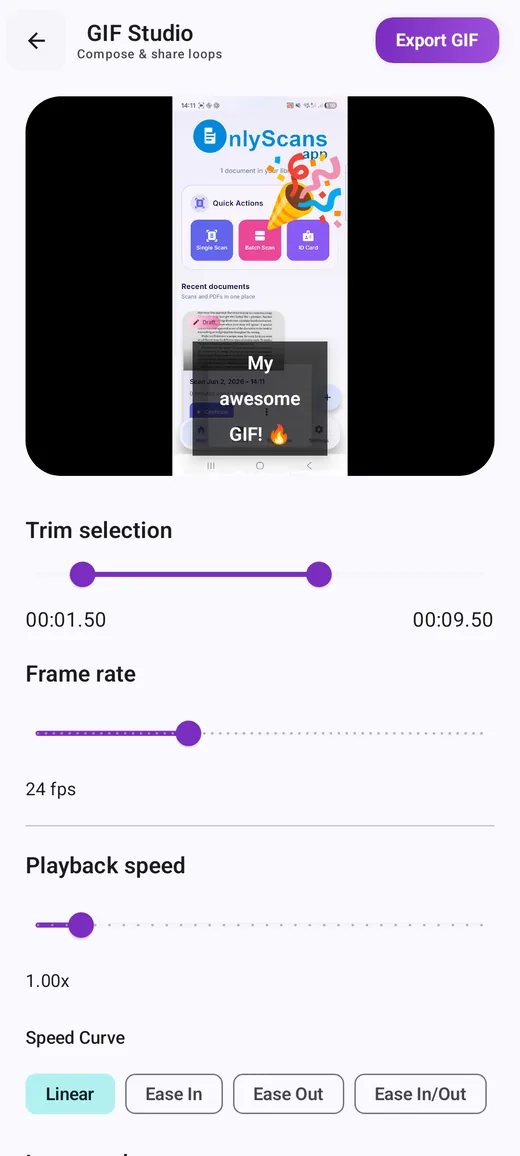
- Trim the clip. In the editor (called GIF Studio), drag the two handles under Trim selection. The start and end times are shown to the hundredth of a second, so you can cut right on the action. Play the preview a few times and tighten the ends — most clips improve when you cut 0.2–0.5 seconds off each side.
- Choose how to size the export. Under Export settings, pick Target file size (1, 2, 5 or 10 MB, or a custom limit) and let the app balance quality for you, or pick Manual quality to set frame rate, canvas and quality yourself.
- Set timing. In manual mode, set Frame rate (5–60 fps) and Playback speed (0.25x to 8x). Our guide to GIF frame rate and speed explains how the two interact.
- Crop or reframe if needed. Use Crop with a free or fixed ratio (1:1, 16:9, 9:16, 4:3 or 3:4) to remove dead space. In manual mode, Canvas offers Standard (480 px wide), Square (480 × 480), Small (320 px wide) or a custom size.
- Add extras only if they help. Captions, meme templates, filters, emoji stickers and drawing are further down the same screen.
- Tap Export GIF. The GIF is saved to your gallery in Pictures/GifLab, and a copy of the project goes into the in-app Library so you can re-export or edit it later. Use Share Now to send it straight to a chat app.
Recommended settings for common uses
There is no single best setting; it depends on where the GIF will be watched. These starting points work well for most phone footage:
| Use | Length | Width | Frame rate | Colors |
|---|---|---|---|---|
| Reaction GIF for a chat | 1–3 s | 320 px | 10–12 fps | Medium is usually fine |
| How-to clip for a help page or README | 3–8 s | 480 px or more if text must be read | 10–15 fps | High, so UI text stays crisp |
| Social post or story | 3–6 s | 480 px | 15–20 fps | High |
| Product or motion demo where smoothness matters | 2–4 s | 480 px | 20–25 fps | High |
Why so small compared with your phone's video? A GIF stores every frame as a full image with at most 256 colors, compressed losslessly. It has none of the tricks modern video codecs use to describe motion efficiently, so a GIF the size of your original 1080p video would be enormous. Most GIFs are also watched in a chat bubble or a column of text, where 320–480 pixels is all the space they get.
If a platform or chat app has a size limit, use a target file size instead of guessing. Limits differ between services and change over time, so check the current limit where you are posting. Our guide to reducing GIF file size explains which settings give back the most space.
Cropping and framing for small screens
Phone videos are often shot vertically with the interesting part in the middle third. When the GIF is shown small, everything outside the action is wasted pixels. Two tools fix this, and they do different things:
- Crop cuts away part of the picture. Use it to zoom in on the subject or to turn a tall video into a square without black bars.
- Canvas sets the output size and shape. Choosing Square for a tall video fits the whole frame inside a square and fills the leftover space with bars, rather than cutting anything off.
As a rule, crop first to frame the action, then pick a canvas that matches the crop. A 1:1 crop with a Square canvas gives a clean square GIF that looks good almost everywhere.
Captions, filters and stickers
Extras add personality, but each one has a cost:
- Captions make a GIF understandable without context. Keep them to one short line, and use an outline or a background so they stay readable over any footage.
- Filters such as B&W, Sepia or Noir often make a GIF look cleaner and slightly smaller, because a narrow range of tones fits the 256-color limit more gracefully. Filters that add soft gradients, such as a vignette, can do the opposite.
- Stickers and drawings are great for pointing at something in a tutorial clip. A circle or arrow drawn on a screen recording often does more than a sentence of text.
Common problems and how to fix them
The GIF is far too big
Shorten it first, then reduce width, then frame rate. Length and dimensions matter much more than anything else. Our file-size guide has a worked example.
Motion looks choppy
Raise the frame rate a little (12 to 15 fps, or 15 to 20 fps). If the clip was slowed down, the source may simply not have enough frames; slow motion needs footage recorded at a high frame rate.
Colors look blotchy or banded
Skies, skin and gradients suffer most under the 256-color limit. Use the highest quality setting, avoid heavy color filters, or choose a clip with simpler colors.
The export fails
Very long or very high-resolution clips can exceed what the phone can process in one go. Trim the clip shorter or choose a smaller canvas, then try again.
Reverse or Boomerang does not show in the preview
In GifLab the live preview plays forward; Reverse and Boomerang are applied when you export. Check the exported GIF in your gallery.
Frequently asked questions
Does the GIF keep the sound from my video?
No. The GIF format cannot store audio. If sound matters, share the original video clip instead, or add a caption that carries the important line.
Where does GifLab save my GIFs?
Exports go to your gallery under Pictures/GifLab. The app also keeps a local Library with thumbnails, where you can share again, re-export or reopen a project to edit it.
Can I make a GIF from a video longer than a minute?
You can open long videos, but trim to the few seconds you actually need. A GIF of a full minute of footage will be very large and is usually better shared as a video.
Do I need an internet connection?
No. GifLab processes the video on your phone and does not upload your media. A connection is only used for things like ads and update checks.