GIF making guide
GIF Frame Rate and Speed Explained: How to Get Smooth Timing
What frame rate and playback speed really do in a GIF, why 24 and 30 fps cannot be stored exactly, and which settings keep motion smooth without bloating files.
Frame rate is how many different images a GIF shows per second; it controls smoothness and has a big effect on file size. Playback speed is how fast time passes compared with the original clip; it controls how long the GIF lasts. For most GIFs, 10–15 fps is smooth enough, 20–25 fps is worth it for fast motion, and anything above 50 fps cannot be shown properly by the GIF format at all.
This guide explains how GIF timing works under the hood, how frame rate and speed interact, and how to create slow motion, fast motion and deliberate pauses.
How GIFs store timing
A GIF does not have a frame rate in the way a video does. Instead, every frame carries its own delay: how long to show it before moving on. That delay is stored as a whole number of hundredths of a second (centiseconds). A delay of 10 means 0.10 seconds, which works out to 10 frames per second.
Because delays must be whole hundredths, only certain frame rates can be stored exactly: 100 ÷ a whole number. That gives 50, 33.3, 25, 20, 16.7, 14.3, 12.5, 11.1 and 10 fps, and so on downwards. Popular video rates fall between the cracks:
| Frame rate you choose | Ideal delay | What a GIF can store |
|---|---|---|
| 10 fps | 10 hundredths | Exactly 10 |
| 12 fps | 8.33 hundredths | 8 or 9 (8 alone plays at 12.5 fps) |
| 15 fps | 6.67 hundredths | 6 or 7 (7 alone plays at 14.3 fps) |
| 20 fps | 5 hundredths | Exactly 5 |
| 24 fps | 4.17 hundredths | 4 or 5 (4 alone plays at 25 fps) |
| 25 fps | 4 hundredths | Exactly 4 |
| 30 fps | 3.33 hundredths | 3 or 4 (3 alone plays at 33.3 fps) |
| 50 fps | 2 hundredths | Exactly 2 |
| 60 fps | 1.67 hundredths | Not reliably possible |
Encoders handle the in-between rates either by rounding every frame to the nearest whole value, which changes the speed slightly, or by alternating between two values so the average comes out right, which keeps the duration accurate at the cost of tiny unevenness. Neither is visible in most clips, but if you want perfectly even timing, choose 10, 20, 25 or 50 fps.
The 50 fps ceiling: many browsers and apps treat very short delays of 0 or 1 hundredth of a second as a mistake and slow those frames down to roughly a tenth of a second. A GIF that tries to run faster than 50 fps can therefore play slower than intended, or stutter. Keep GIFs at or below 50 fps, and in practice at or below 30.
Choosing a frame rate
Every extra frame per second adds a full image to every second of the GIF, so frame rate is one of the biggest drivers of file size. Going from 24 to 12 fps halves the number of frames. Pick the lowest rate that still looks right for the content:
| Content | Suggested frame rate | Why |
|---|---|---|
| Screen recordings: taps, menus | 10–12 fps | Mostly static; changes are instant |
| Reactions and talking heads | 10–15 fps | Expressions read fine; small file |
| Stop-motion and photo sequences | 8–12 fps | Slight choppiness is part of the look |
| Sports, pets, fast action | 15–25 fps | Fast motion strobes at low rates |
| Scrolling and smooth pans | 20–25 fps | Low rates make text and edges judder |
If you are trying to fit a size limit, our guide to reducing GIF file size shows how frame rate compares with the other options.
Speed is a different control
Playback speed changes how long the GIF lasts. The math is simply: new duration = original duration ÷ speed.
| Speed | A 6-second clip becomes |
|---|---|
| 0.25x | 24 seconds |
| 0.5x | 12 seconds |
| 1x | 6 seconds |
| 1.5x | 4 seconds |
| 2x | 3 seconds |
| 8x | 0.75 seconds |
A useful way to think about the two controls together: frame rate decides how many moments are captured from each second of the original video, and speed decides how quickly those moments play back. That has two practical consequences.
Speeding up: lower the frame rate
Capture at 24 fps and play at 2x, and the GIF has to show 48 images per real second — delays of about 2 hundredths, right at the format's limit. Capturing at 12–15 fps instead gives 24–30 images per second at 2x: smooth, safely within limits and with half the frames.
Slowing down: you need frames that exist
Capture at 24 fps and play at 0.5x, and only 12 new images appear per second, which looks noticeably choppier. Capturing at a higher rate helps only if the original video actually has those frames. Slow motion stays smooth when the source was recorded at a high frame rate, such as a 60 fps or slow-motion video; from a standard 30 fps video, a higher capture rate just repeats frames.
Creating pauses and holds
Because every GIF frame has its own delay, holding one moment is natural to the format: a punchline frame, a final result in a tutorial, or a beat before the loop restarts. In editors that work at a fixed frame rate, the way to hold a frame is to duplicate it. At 10 fps, a frame followed by four copies stays on screen for half a second.
Frame rate and speed controls in GifLab
In GifLab's editor, choose Manual quality under Export settings to see these controls:
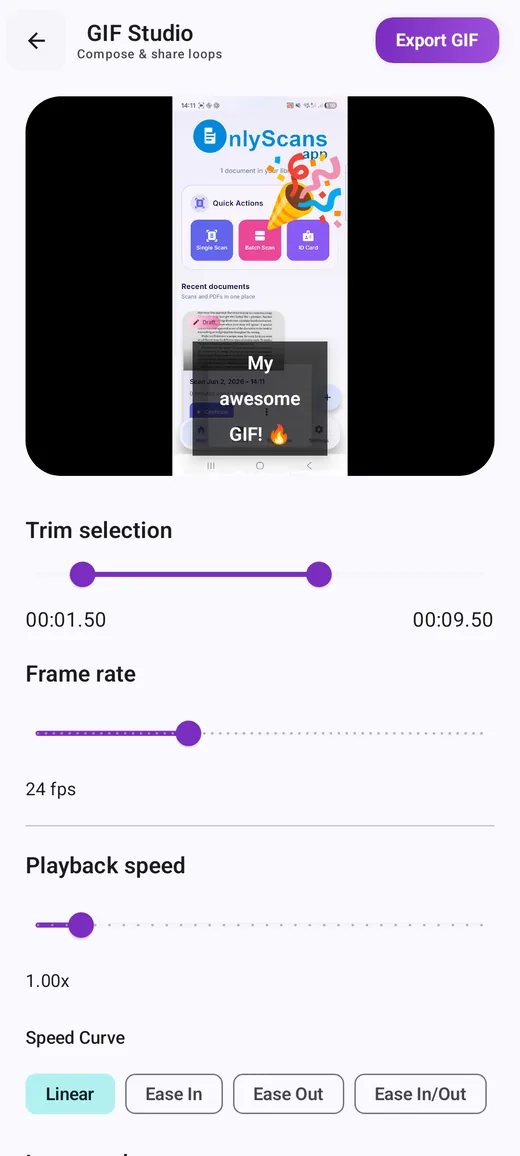
- Frame rate: a slider from 5 to 60 fps, starting at 24. Given the ceiling described above, we recommend staying at 30 fps or below.
- Playback speed: 0.25x to 8x.
- Speed Curve: Linear keeps a constant speed; Ease In, Ease Out and Ease In/Out vary the speed over the course of the clip instead of keeping it constant.
If you choose Target file size instead, GifLab keeps your playback speed and may lower the frame rate towards 10 fps to fit the limit.
For frame-level control, open the Frame Editor from the editor. In Extraction Settings you choose how many frames per second to pull from your trimmed clip, from 10 fps up to the video's own frame rate. You can then duplicate frames to create holds, remove frames you do not want and move frames up or down. The Frame timing slider (4 to 24 fps) shows exactly how many milliseconds each frame stays on screen. The same timing slider appears in Images to GIF; our guide to making a GIF from photos has a table of timings for photo sequences.
Frequently asked questions
What is the best frame rate for a GIF?
There is no single best rate, but 12–15 fps suits most clips, 10 fps suits screen recordings, and 20–25 fps suits fast action. If you want perfectly even timing, 10, 20 and 25 fps divide neatly into hundredths of a second.
Why does my GIF play slower in some apps than others?
The two usual causes are very short frame delays that the app slows down, and large GIFs that a slower device cannot decode quickly enough. Keeping to 30 fps or less and a modest size fixes both.
Can I change the speed of a GIF I already have?
Yes. Open it with Edit a GIF in GifLab, adjust Playback speed and export it as a new file. Speeding up is always smooth; slowing down a low-frame-rate GIF makes it choppier.
Does speed affect file size?
Not on its own. If the frame rate decides how many frames are taken from each second of the original, as it does in GifLab's manual mode, a clip played at 2x keeps the same frames and simply shows them faster. The saving comes from lowering the frame rate to match, which is what we recommend when you speed a clip up anyway.