Budgeting guide
How to Find, Track and Cancel Subscriptions You Forgot About
Find every recurring charge, work out what each really costs per year, decide what to cancel and set renewal reminders so free trials never surprise you again.
The fastest way to get subscriptions under control is a one-time audit: pull three months of bank and card statements, list every recurring charge, convert each one to a yearly cost, then cancel or downgrade anything you would not sign up for again today. After that, a simple tracker with renewal reminders keeps new ones from slipping in.
Subscriptions are designed to be easy to start and easy to forget. Small amounts, different billing cycles and charges spread across several cards make the total hard to see. This guide shows you how to see it.
Step 1: Find every recurring charge
Do not rely on memory — the forgotten ones are exactly the ones you will not remember. Check these places:
- Bank and card statements for the last three months. Three months catches monthly charges plus most quarterly ones. Search or scan for repeated merchant names and identical amounts.
- Your last twelve months for annual renewals. Yearly charges are the easiest to miss because you only see them once. Search statements for the names of software, storage, memberships, domains and antivirus products.
- Your phone’s app store subscriptions page. Both Google Play and Apple’s App Store list active subscriptions purchased through them, along with renewal dates.
- PayPal and other payment services. Many keep a list of merchants with permission to charge you automatically.
- Your email. Search for words like “receipt”, “renewal”, “your subscription” and “trial ends”.
- Other people’s cards. Family plans, shared streaming and services billed to a partner’s card still cost your household money.
Write each one down with its name, amount, billing cycle, next charge date and which card or account it is billed to.
Step 2: Work out the true yearly cost
Subscriptions bill on different schedules, so the amounts are not directly comparable. Convert everything to a yearly cost:
- Monthly: amount × 12
- Weekly: amount × 52
- Every 4 weeks: amount × 13 (not 12 — there are 13 four-week periods in a year)
- Yearly: the amount itself; divide by 12 for a monthly equivalent
Here is an example audit for one person:
| Subscription | Charge | Billing cycle | Per year | Per month |
|---|---|---|---|---|
| Video streaming | $15.49 | Monthly | $185.88 | $15.49 |
| Music | $10.99 | Monthly | $131.88 | $10.99 |
| Language app | $12.99 | Monthly | $155.88 | $12.99 |
| Gym | $35.00 | Every 4 weeks | $455.00 | $37.92 |
| News app | $2.00 | Weekly | $104.00 | $8.67 |
| Cloud storage | $29.99 | Yearly | $29.99 | $2.50 |
| Photo editor | $59.99 | Yearly | $59.99 | $5.00 |
| Total | $1,122.62 | $93.55 |
Two things usually surprise people. First, the total: seven modest charges add up to more than $1,100 a year. Second, the small weekly and four-weekly charges: the $2 news app costs $104 a year, and a gym that bills every four weeks costs $455 a year — $35 more than you would expect if you assumed it was monthly.
Step 3: Decide what stays
For each subscription, ask three questions:
- Did I use it in the last 30 days? If not, it is a strong candidate to cancel. You can always resubscribe later, often with a returning-customer offer.
- Would I sign up today at this price? Prices creep up over time. A service that was worth it at an introductory rate may not be worth it now.
- Is there an overlap or a cheaper tier? Two video services you alternate between, cloud storage bundled with something else, or an ad-supported tier you would not mind.
In the example above, cancelling the unused language app and the news app saves $259.88 a year without touching anything the person actually uses.
Rotate instead of stacking. If you like several streaming services, keep one at a time and switch every month or two. You get the same shows over the year while paying for one service at once.
Step 4: Cancel properly
Cancelling is where many people stall. A few habits make it reliable:
- Cancel where you signed up. A subscription bought through Google Play or the App Store is cancelled in that store’s subscription settings, not by uninstalling the app. Uninstalling an app does not cancel its subscription.
- Get confirmation. Save the confirmation email or take a screenshot of the confirmation screen.
- Check the end date. Most services keep working until the end of the paid period. Cancel right away rather than waiting for the last day — you rarely lose anything by cancelling early.
- Watch the next statement. Confirm that the charge did not come back. If it did, contact the merchant first with your confirmation; your card issuer can help if that fails.
- Downgrade instead of cancelling when you still want the service but not the premium tier.
Step 5: Handle free trials safely
Free trials are the most common way forgotten subscriptions begin. Before starting one:
- Note the exact date the trial converts to a paid plan and what it will cost.
- Set a reminder two or three days before that date — not on the day itself, when it may already be too late in your time zone.
- If you already know you will not keep it, many services let you cancel immediately and still use the rest of the trial. Check the terms first.
Step 6: Keep a running subscription list
An audit cleans things up once. A tracker keeps them clean. Your list should show, at a glance:
- every active subscription with its amount and billing cycle;
- the next charge date for each;
- your total monthly and yearly subscription cost;
- which ones are trials, paused or cancelled but still active until a date.
Review the list once a quarter, and add a line to it every time you sign up for something new. Include subscriptions in your monthly budget as a fixed category — our guide to making a monthly budget shows where they fit — and set aside money monthly for annual renewals with a sinking fund so a yearly charge never lands on a tight month.
Tracking subscriptions in BudgetVault
BudgetVault has a dedicated subscription tracker on the Subs tab. To add one, tap +, choose Subscription, then enter the name, amount, account and billing cycle. The billing cycle can be every so many weeks, months or years, so a four-weekly gym or a two-yearly domain is counted correctly.
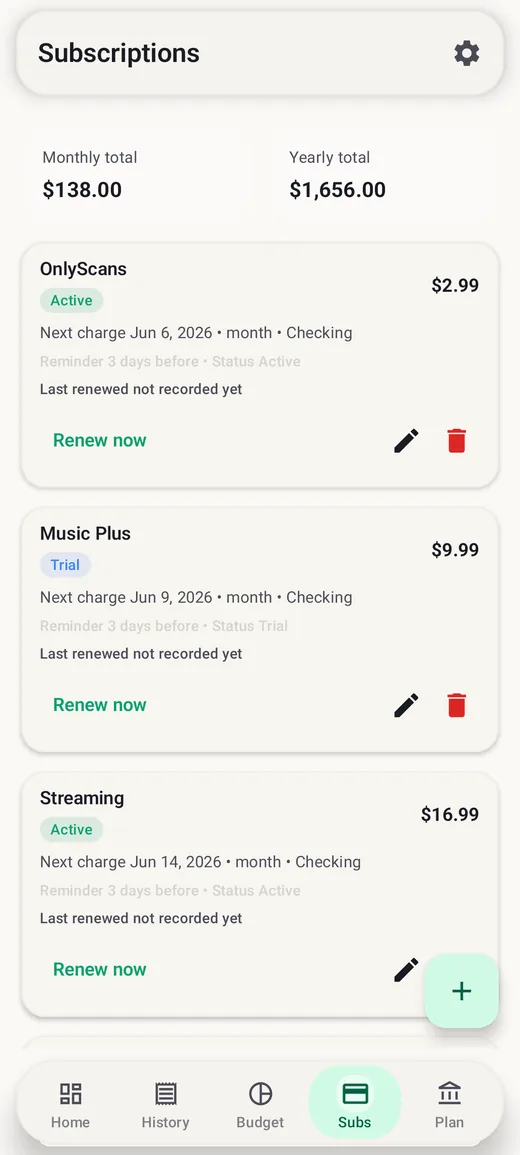
- Status: mark each subscription as Active, Trial, Paused or Canceled, so trials stand out.
- Reminders: get a notification on the due date or 1, 3 or 7 days before it.
- Totals: the tracker adds up your monthly and yearly subscription cost, converting each billing cycle the same way as the table above.
- Renewals: when an active or trial subscription that has an account assigned comes due, BudgetVault records the renewal as an expense and moves the next charge date forward, so your budget stays accurate. Renew now lets you record one yourself.
The free version tracks up to 3 subscriptions; BudgetVault Pro, a one-time purchase, makes it unlimited. The same Subs tab also holds payment reminders for monthly card and bill due dates.
Frequently asked questions
How many subscriptions does the average person have?
It varies widely, and the number matters less than the total. Add up your own yearly cost using the method above — that figure is what you can actually act on.
Does deleting an app cancel its subscription?
No. Deleting an app leaves the subscription active. Cancel it in Google Play, the App Store or the service’s own website, wherever you subscribed.
Should I put subscriptions on one card?
Keeping them on a single card makes audits much easier, because one statement shows them all. Whatever you choose, record which account each one is billed to.
What if I cannot find where a charge comes from?
Search the merchant name exactly as it appears on your statement, check your email for receipts around that date, and look in your app store subscription lists. If you still cannot identify it, ask your card issuer.
This guide is general information, not financial advice. Cancellation terms vary by service and region, so check each provider’s terms.